¶ When to Use This Guide
- When new firmware is released or when the devices cannot Bind.
¶ What You Need
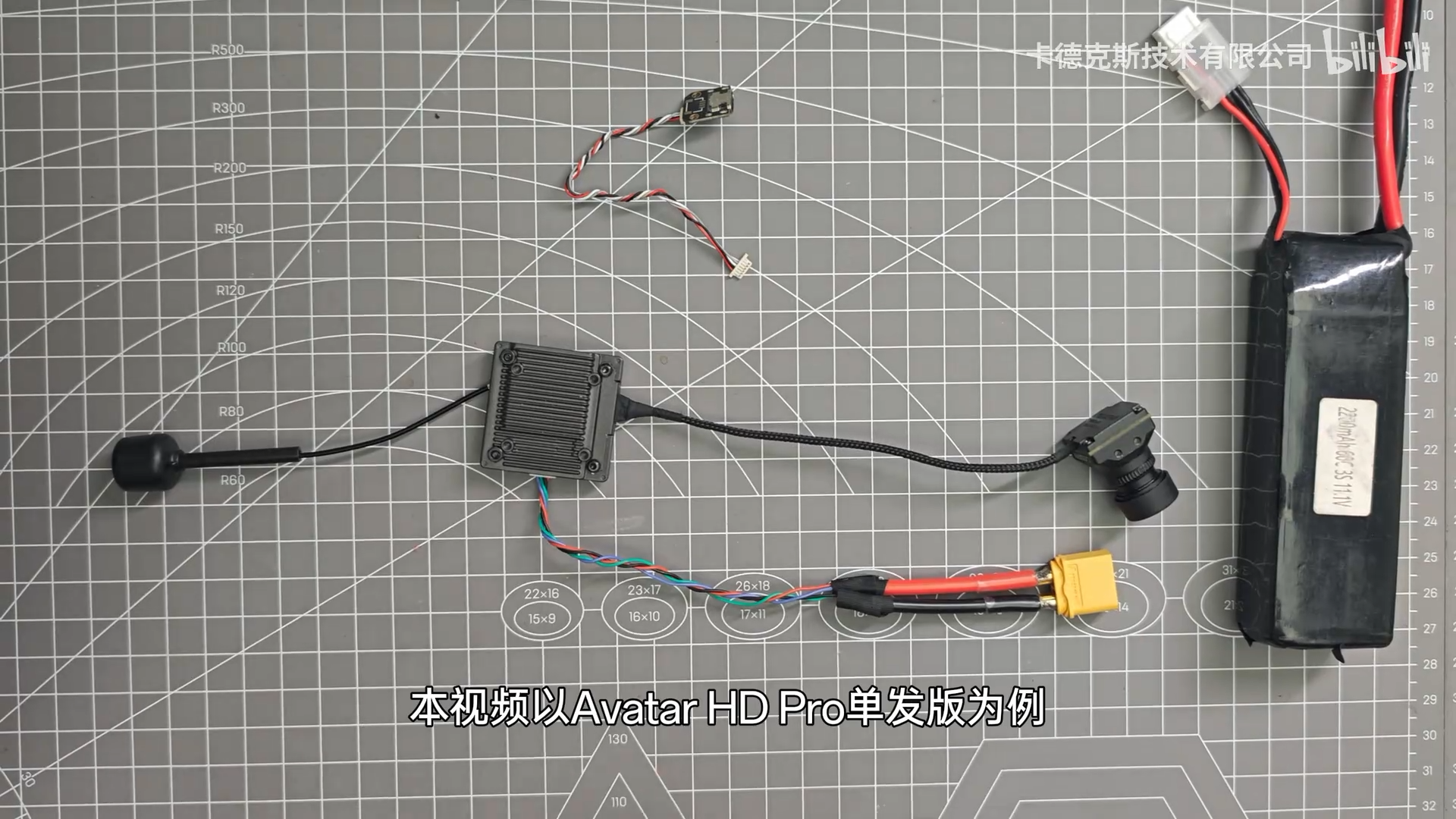
¶ Required Items
- A computer
- A U3 microSD card
- A card reader
- A small fan
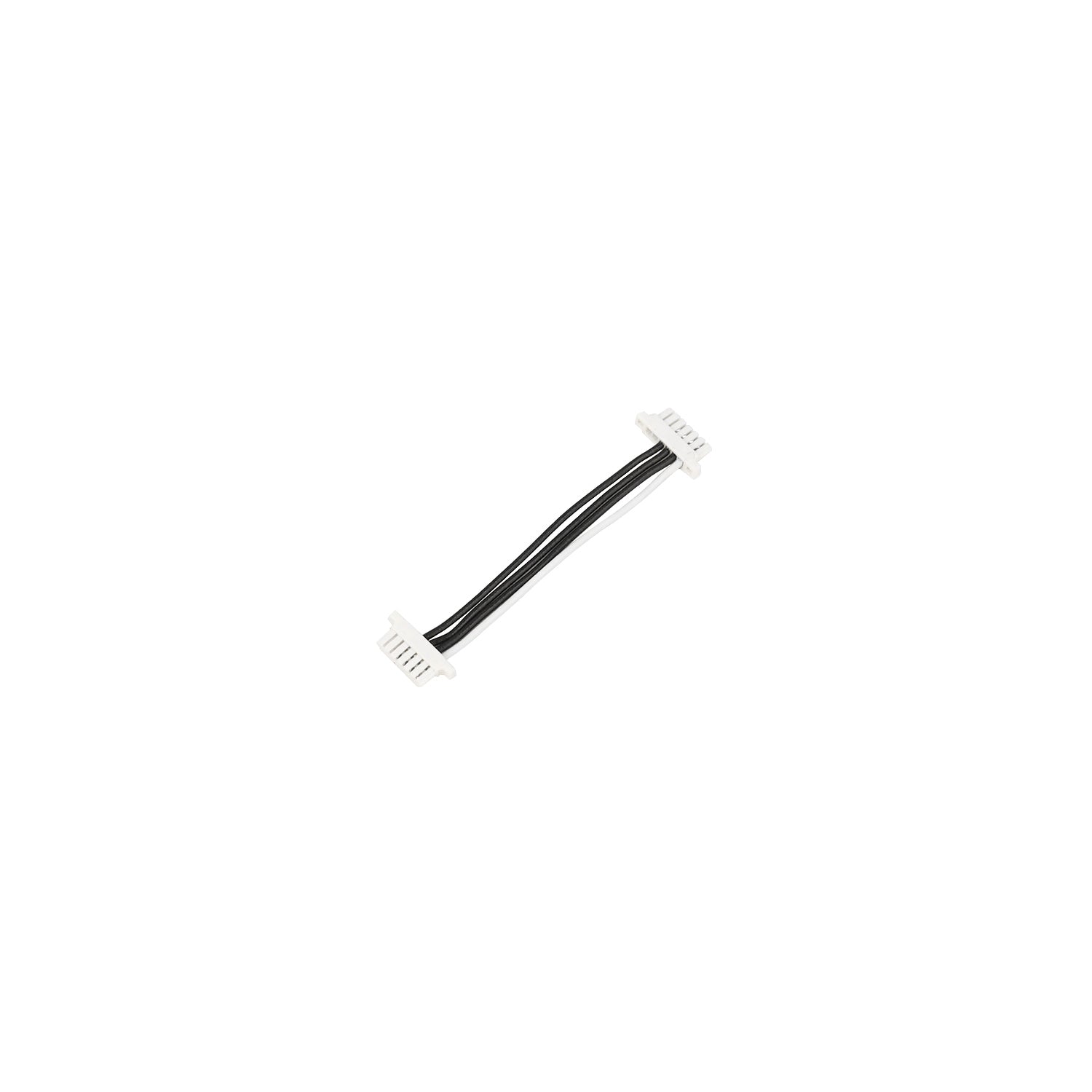
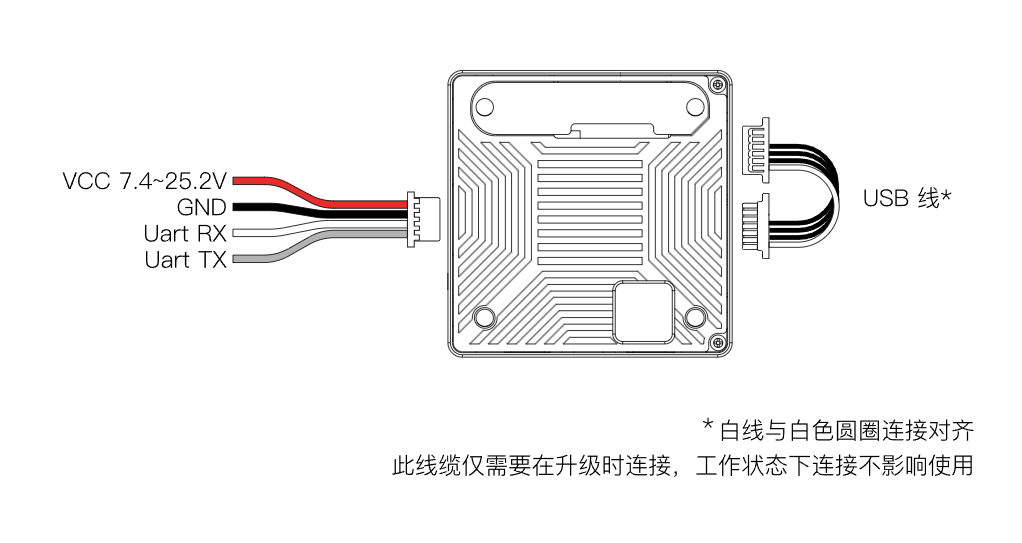
- One firmware update adapter cable (included in the package)
- One USB-A to USB-C data cable (not included)
¶ Check the Current Version
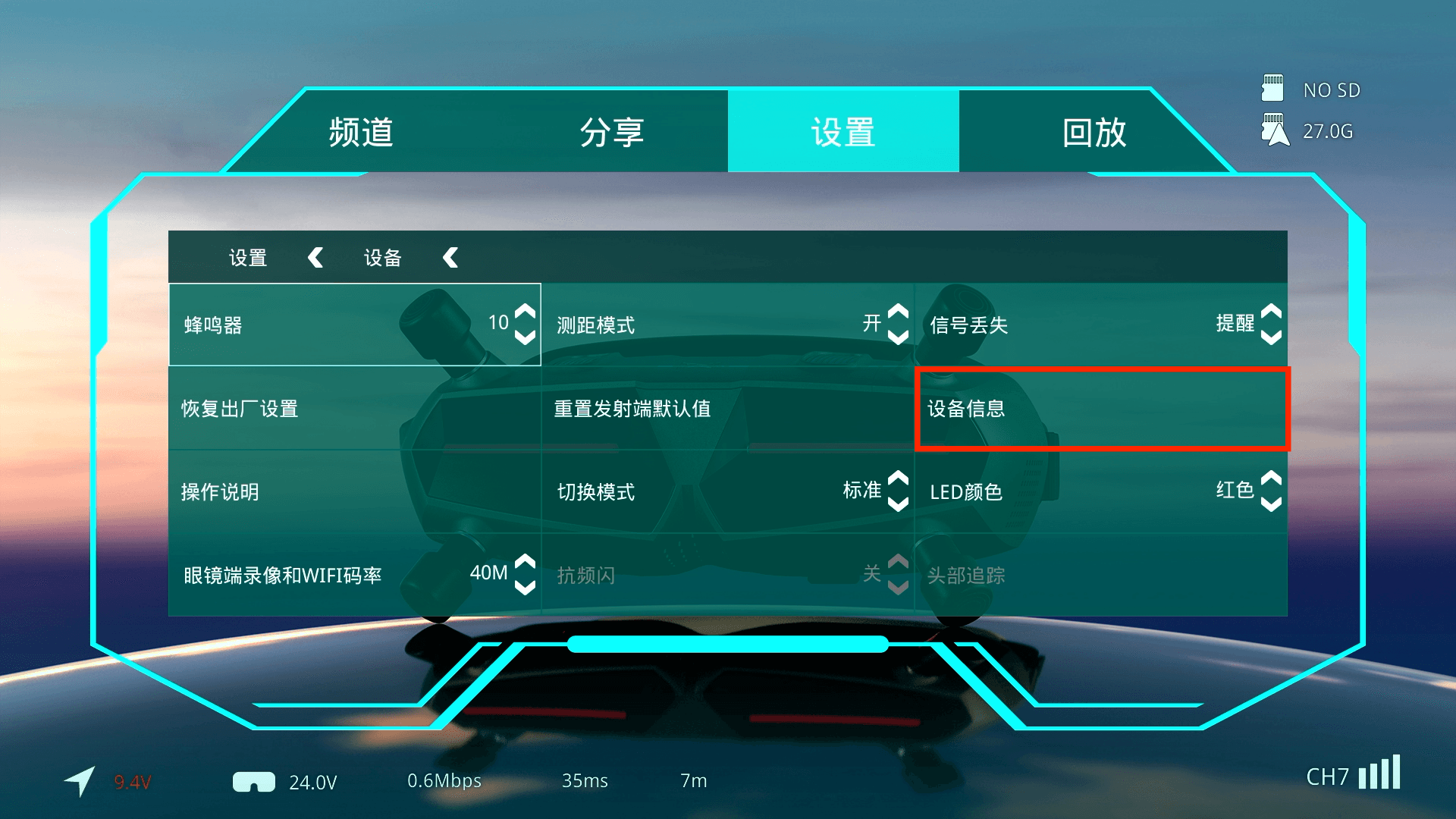
Go to Settings > Device > Device Information.
The current firmware version is displayed under Device Information. When updating, you must select a firmware version newer than the currently installed version. The same or an older firmware version cannot be flashed.
¶ Procedure
¶ Step 1: Connect the Cables
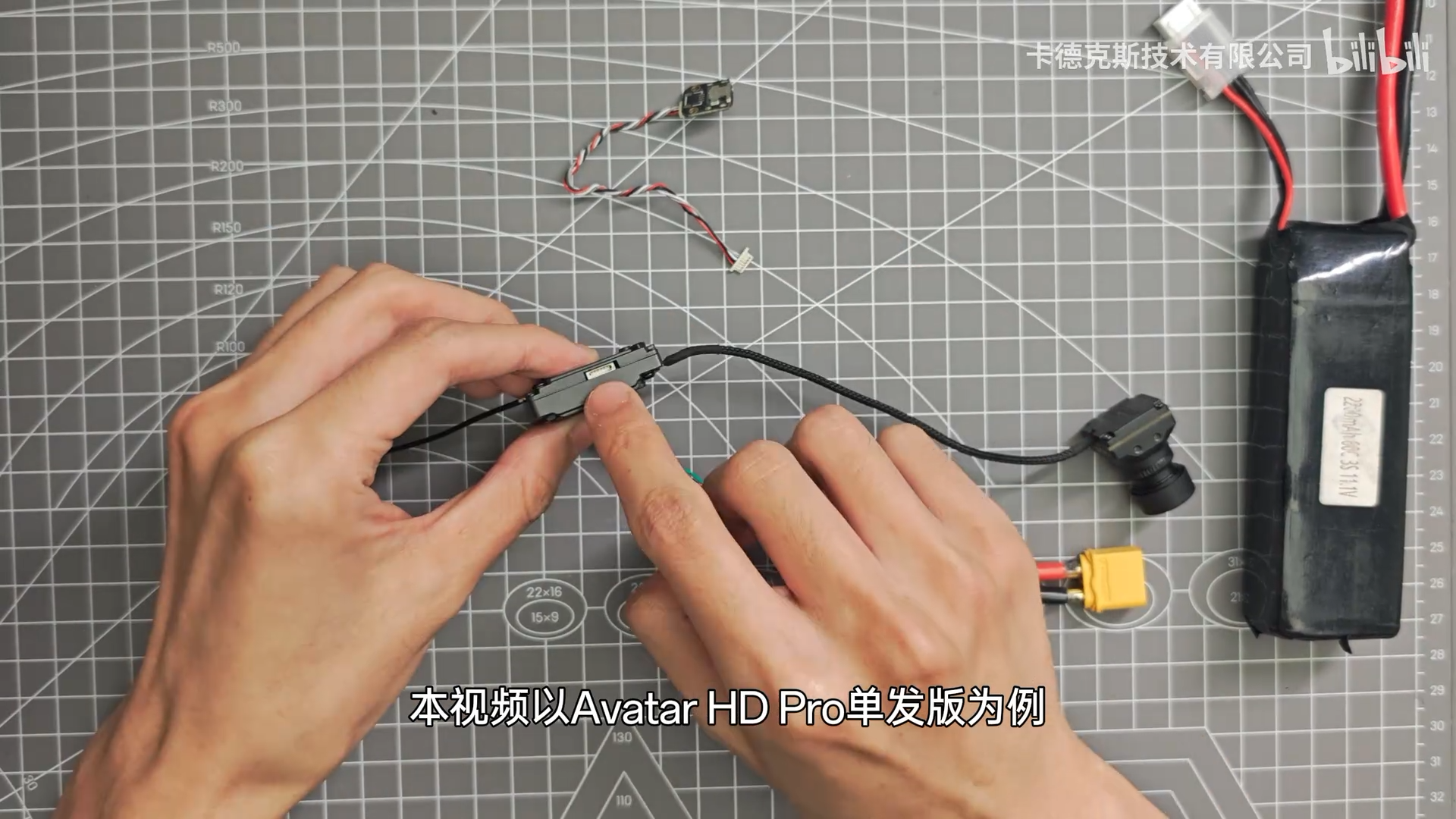
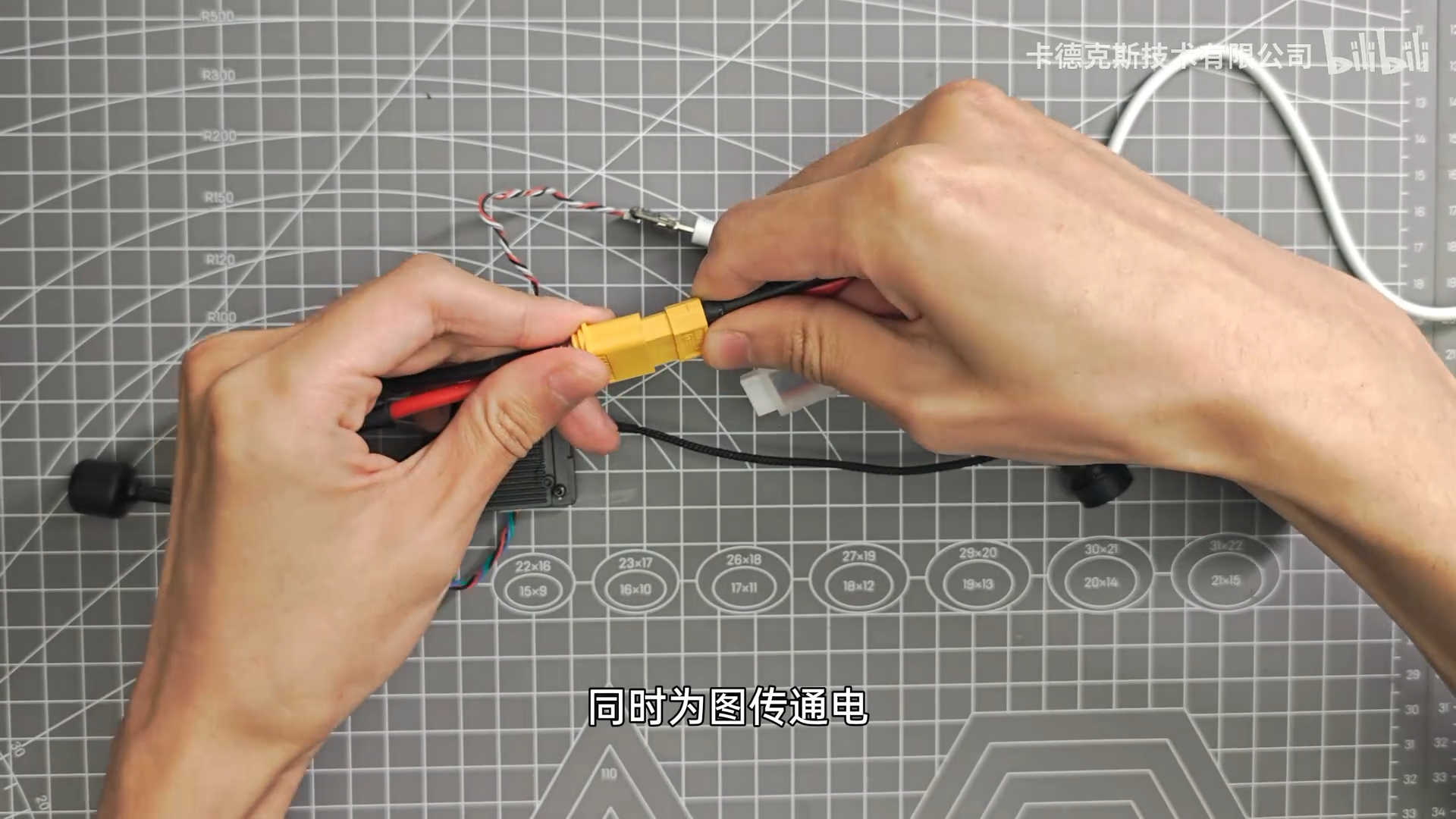
- Connect the update adapter cable between the air unit and the computer.
- Connect the battery to power the air unit.
¶ Step 2: Confirm the Firmware File
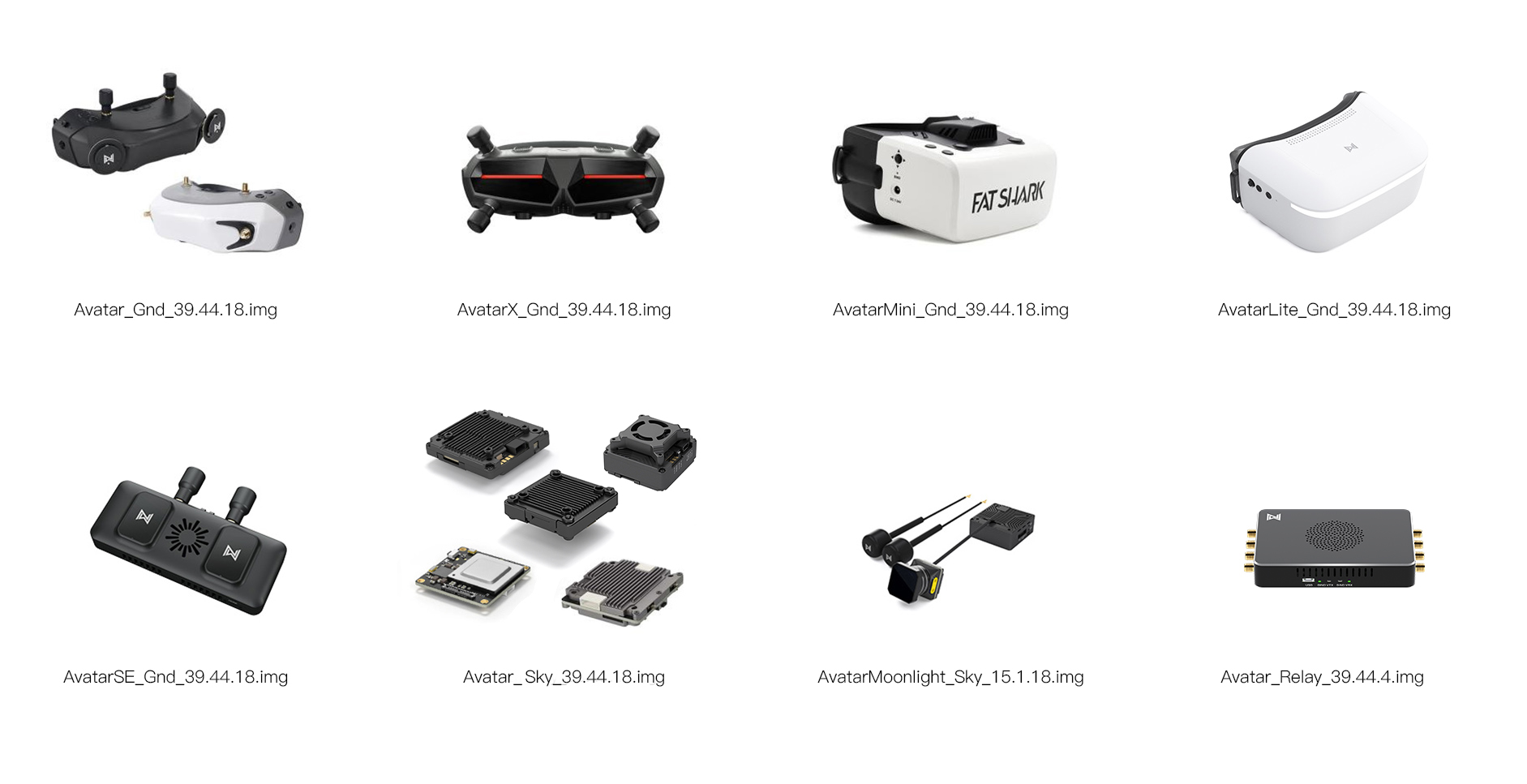
The device has strict firmware filename requirements. An incorrect file may prevent the firmware update from working properly. Refer to the image below to confirm your product model and select the correct firmware file.
¶ Step 3: Copy the Firmware File
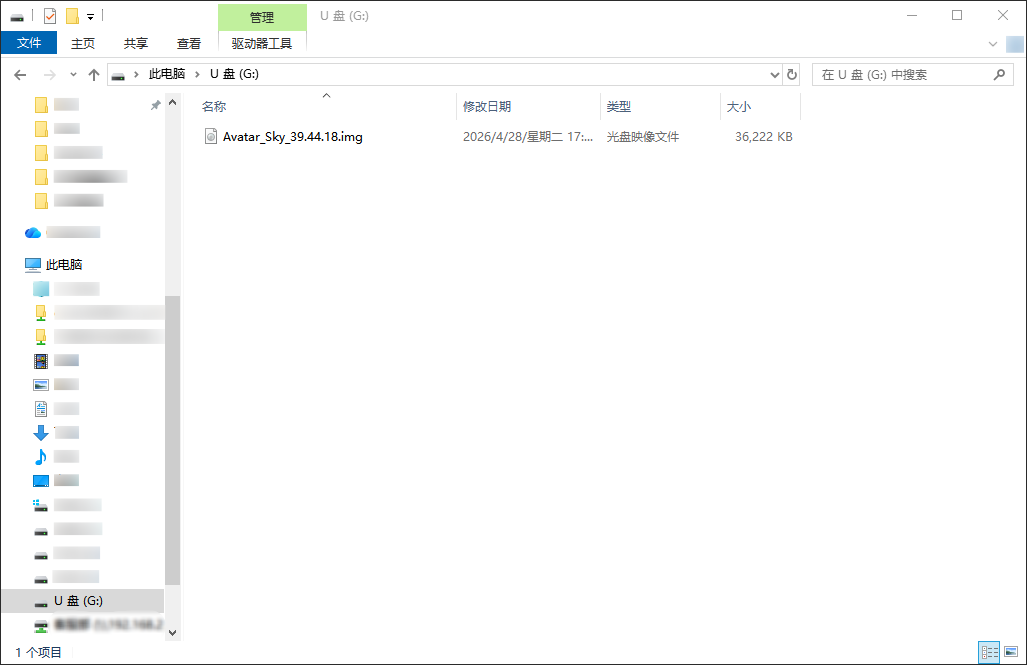
- For example, for the Avatar Pro Kit, select
Avatar_Sky_39.44.18.
¶ Step 4: Enter Firmware Update Mode
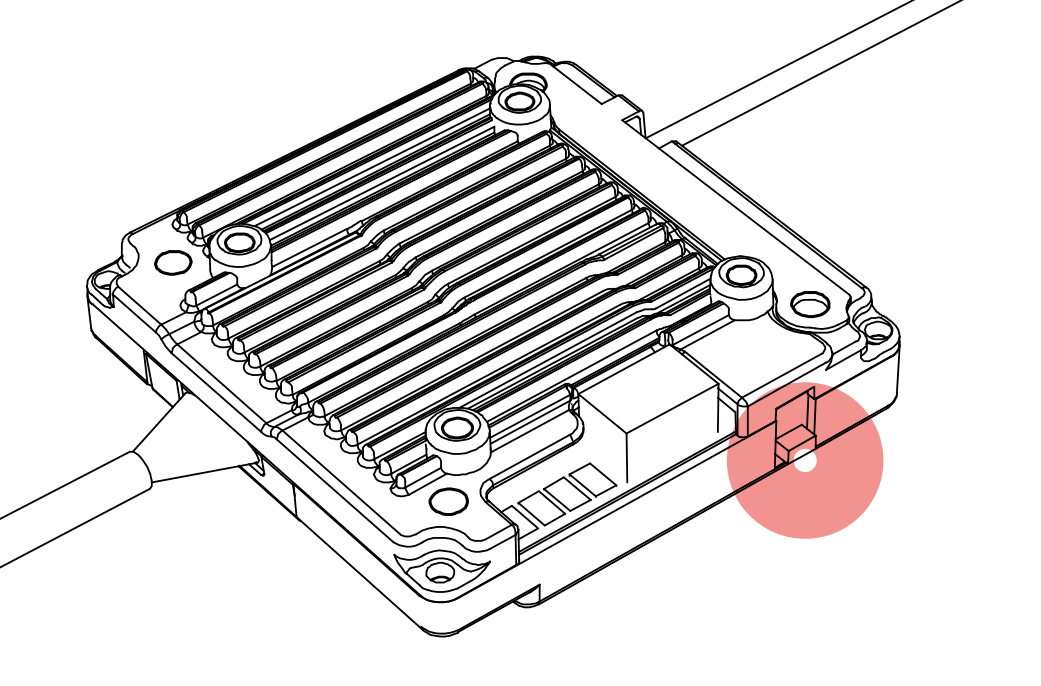
- Press and hold the Bind button on the air unit for approximately 8 seconds until the LED turns off, then release the button. The device will enter firmware update mode.
¶ Step 5: Wait for the Firmware Update
- The device will enter firmware update mode and the LED will continue flashing. Wait until the device restarts and the LED begins flashing green rapidly. The firmware update is then complete.
¶ Other Devices
¶ GT and GT2 Air Unit Kits
- When using the Avatar GT or GT2 Air Unit Kit, the microSD card slot must be used.
- Make sure the microSD card is formatted as exFAT. Insert the microSD card into a card reader and connect it to the computer. After the drive is detected, copy the firmware file to the microSD card.
- The remaining firmware update procedure is the same. Insert the microSD card into the GT air unit, then press and hold the Bind button for approximately 8 seconds until the LED turns off, and release the button.
¶ Moonlight Kit
- The firmware update procedure for the Moonlight Kit is generally the same as for the GT Air Unit Kit, except that the firmware update adapter cable must also be connected.
¶ How to Verify
- If the firmware update is successful, the LED will either flash green rapidly or remain solid green.
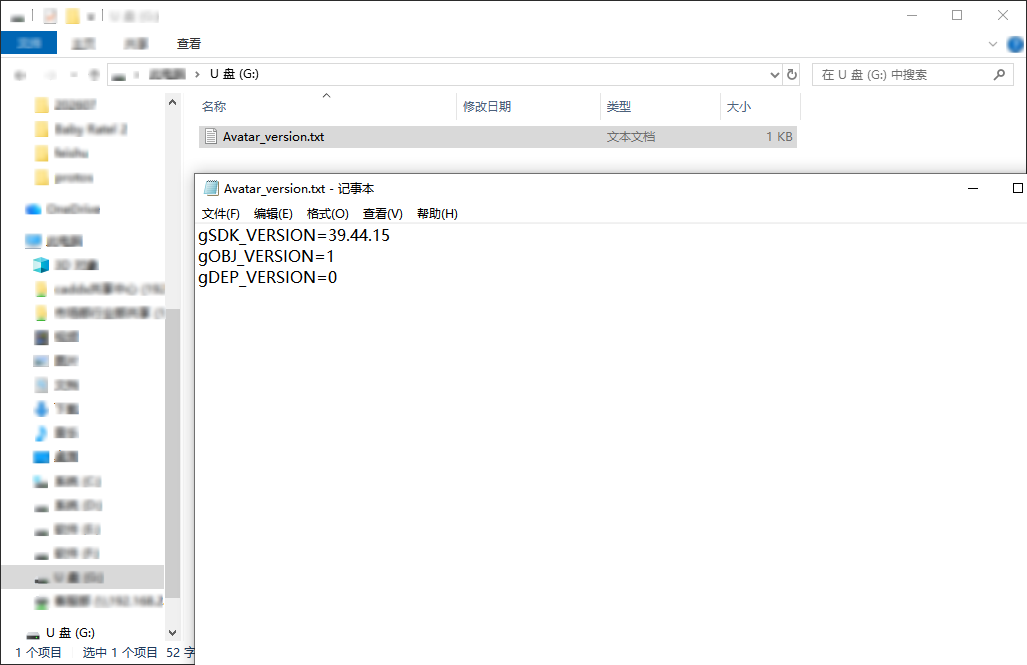
- You can reconnect the air unit to the computer. A file named
Avatar_versionwill be generated in the air unit’s internal storage. Open this file to check the current firmware version of the air unit.
¶ Important Notes
Do not disconnect the power during the firmware update. Doing so may cause the update to fail or, in severe cases, brick the device.
It is recommended to use a fan to cool the air unit while flashing the firmware. Extended operation may trigger thermal protection.
The air unit firmware update takes approximately 3 minutes. If the update is still unsuccessful after this time, you can disconnect the power and try again.