¶ When to Use This Guide
- Use this procedure when new firmware is released or when the devices cannot be paired.
¶ Video Tutorial
¶ What You Need
- A computer
- A gimbal firmware update module
- A 5-pole-to-4-pole or 4-pole-to-4-pole 3.5 mm audio adapter cable
- A USB-A to USB-C data cable
¶ Update Procedure
¶ Step 1: Download the Firmware
¶ Step 2: Connect the Device to the Computer
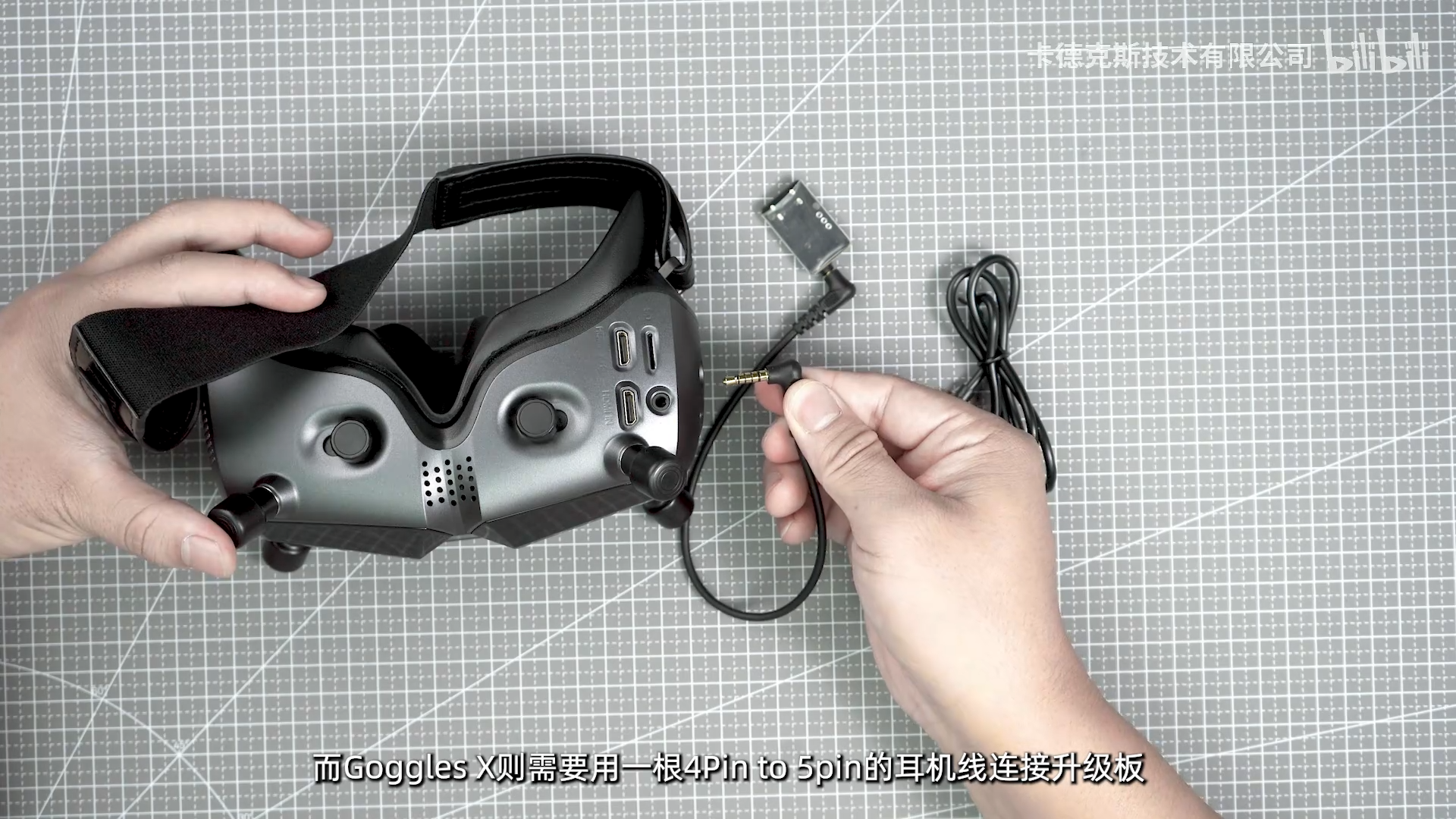
- Use the firmware update module to connect the head-tracking module to your computer. The Avatar Goggles X are used as an example in this guide.
The Avatar Goggles L and Ascent Goggles require a different adapter cable: a 4-pole-to-4-pole 3.5 mm audio adapter cable.
This cable is not included with older batches of the goggles and must be obtained separately. It is included with the firmware update module. New batches of the goggles manufactured from September 2026 onward include this cable.
¶ Step 3: Install the Driver
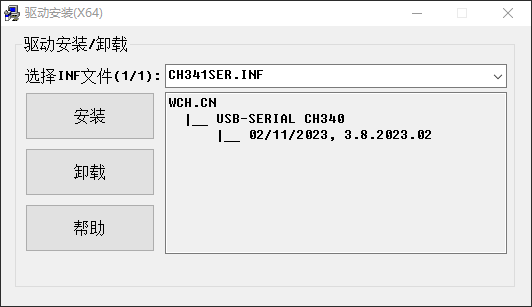
- Install the driver included in the downloaded package to enable communication with the firmware update module.
¶ Step 4: Connect the Power Supply
- The goggles or head-tracking module must be connected to an external power source during the firmware update. The firmware cannot be updated using the USB connection alone.
¶ Step 5: Select the COM Port
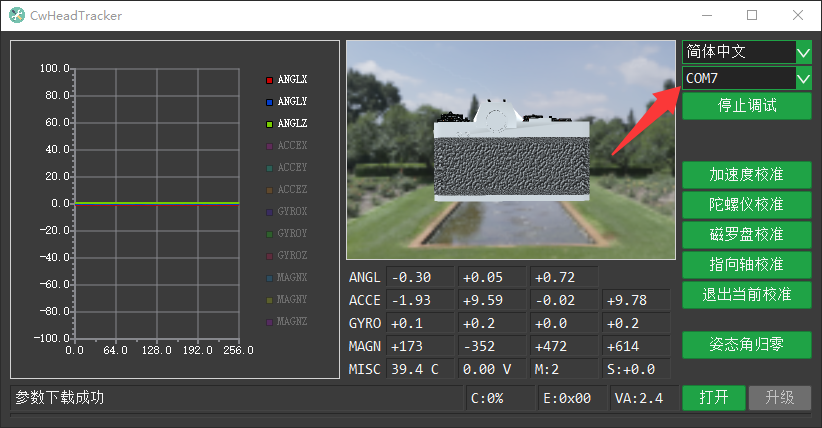
- Select a COM port other than COM1. If multiple ports are displayed, disconnect and reconnect the USB cable to identify the correct port.
- After the correct port is selected and the connection is successful, the values displayed on the page will change as the head-tracking device moves.
¶ Step 6: Update the Firmware
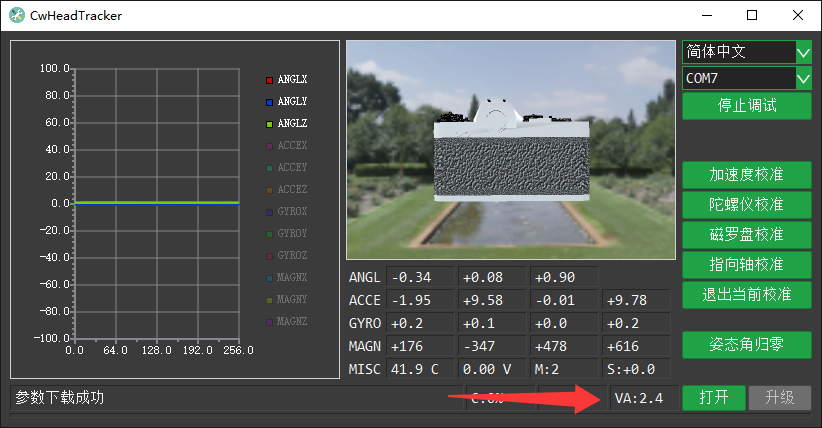
- The current firmware version is displayed in the lower-right corner. Select the new firmware file, then start the update.
¶ Important Notes
If the computer does not detect the COM port of the firmware update module, check whether the driver has been installed correctly.
When connecting the Avatar Goggles X to the computer for a firmware update, ensure that the 3.5 mm adapter cable is connected in the correct direction. Insert the 5-pole connector into the Goggles X and the 4-pole connector into the firmware update module.