¶ When to Use This Guide
- Use this procedure when new firmware is released or when the devices cannot be paired.
¶ What You Need
- A computer
- A microSD card
- A card reader
¶ Receiver Unit
¶ Step 1: Download the Firmware
- Download the firmware package to your computer, then insert the microSD card into the computer.
¶ Step 2: Select the Correct File
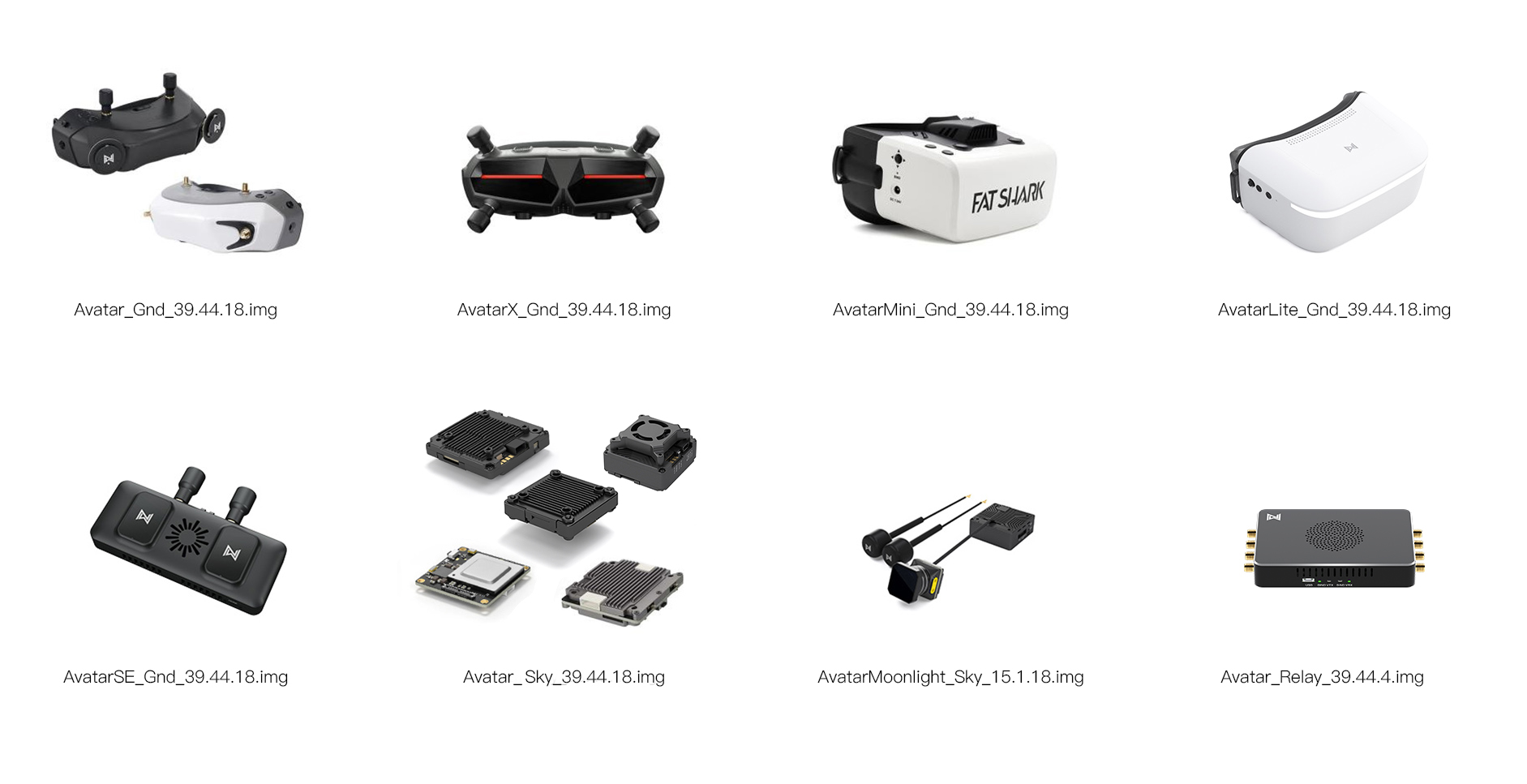
- Each device requires a firmware file with a specific filename. Using an incorrect file may prevent the device from updating properly.
- Refer to the chart below and select the firmware file that corresponds to your device. The filename copied to the microSD card must exactly match the filename shown in the chart.
- For example, the Avatar Goggles X requires the file named
AvatarX_Gnd_39.44.18 - Copy the correct firmware file to the microSD card.
¶ Step 3: Start the Firmware Update
- Connect the receiver unit to a power source and turn it on.
- Insert the microSD card into the device.
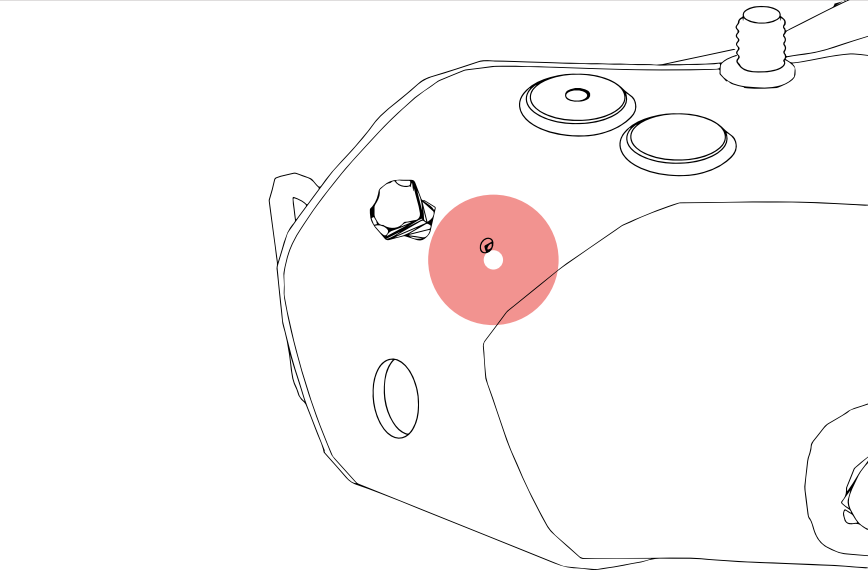
- After the device has finished starting up, press and hold the pairing button for eight seconds.
- Release the button when the screen turns off or the buzzer sounds.
¶ Step 4: Complete the Firmware Update
- The device will enter firmware update mode, and the buzzer will beep slowly.
- Wait until the firmware update is complete and the device restarts.
¶ How to Verify the Update
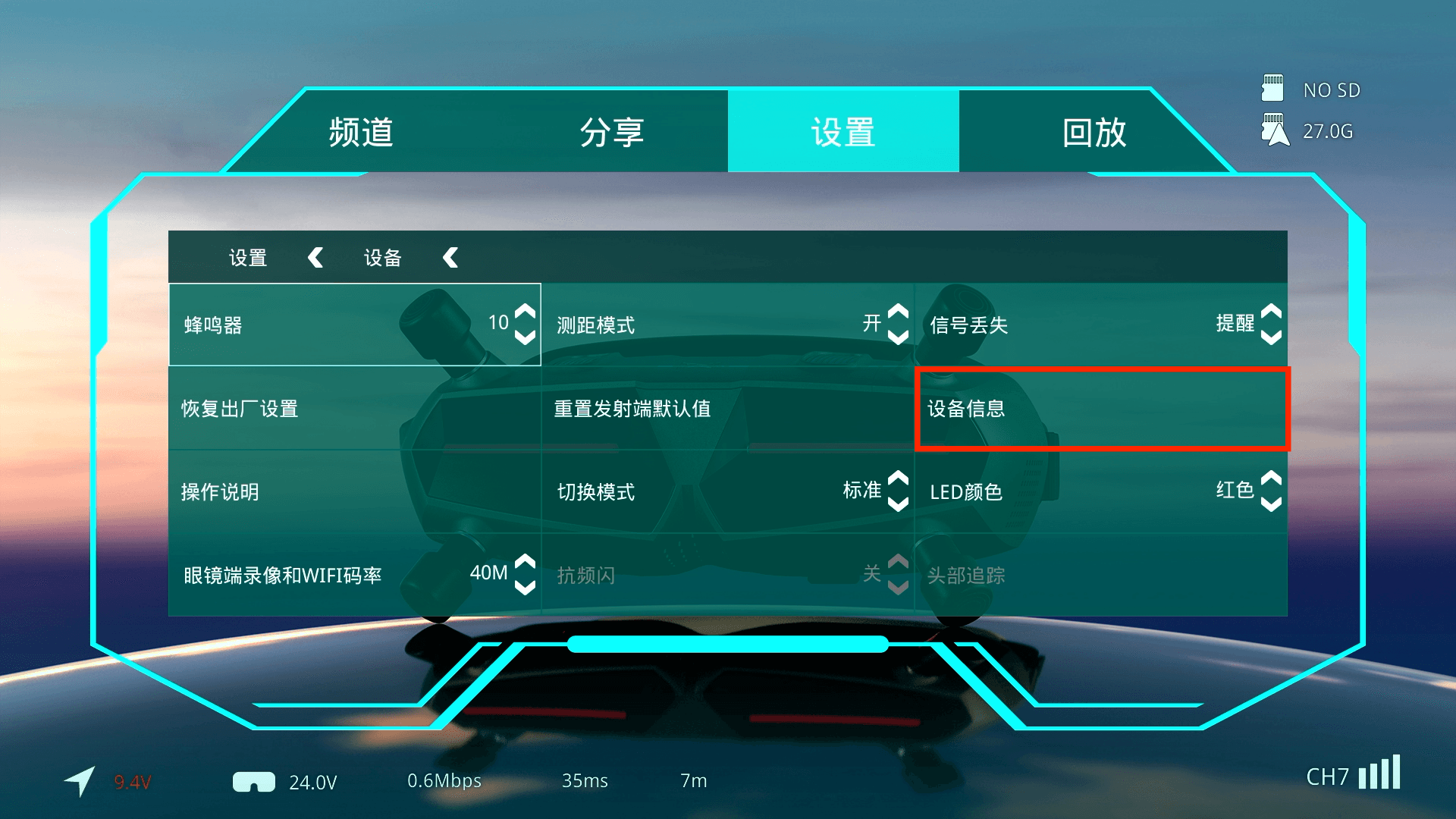
- After the update is completed successfully, go to Settings > Device > Device Information to check the current firmware version.
¶ Important Notes
Do not disconnect the power during the firmware update. Interrupting the power may cause the update to fail or permanently brick the device.
The firmware update takes approximately 10 minutes. If the device has not restarted after 10 minutes, disconnect the power and try the update again.