¶ Applicable Scenario
- Use this guide when a firmware update fails or the device reports an update error.
¶ What You Need
¶ Required Items
- A computer
- A U3-rated microSD card
- A card reader
- A small cooling fan
¶ Check the Current Firmware Version
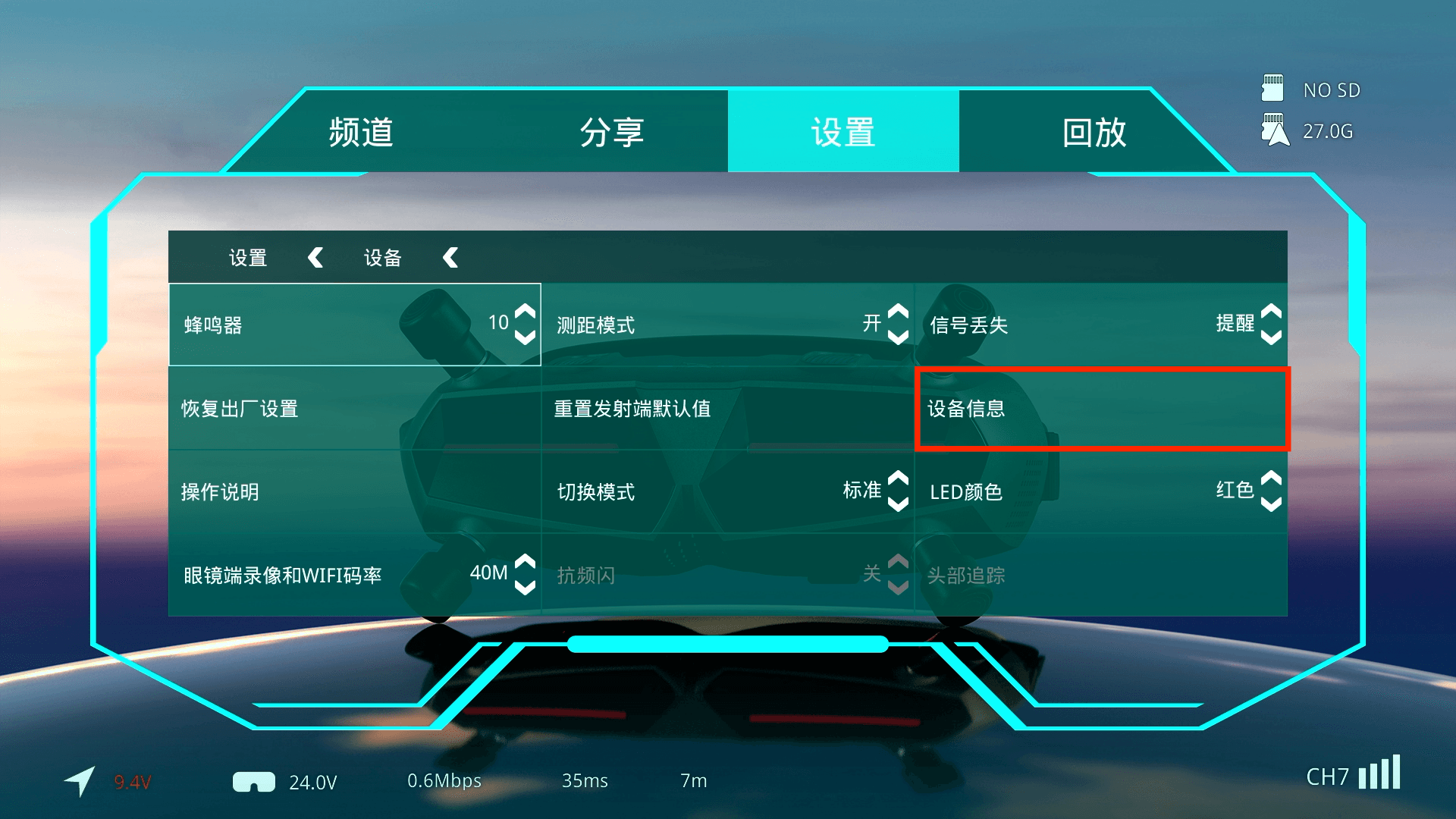
- Go to Settings > Device > Device Information.
¶ Troubleshooting
¶ Case 1: Insufficient Power Supply
¶ Symptoms
- The firmware update may fail, or the device may become bricked and no longer power on.
¶ Solution
- A stable power source with sufficient voltage and current is required during the firmware update. Refer to the product manual and use a suitable power supply.
¶ Case 2: Firmware File Not Detected
¶ Symptoms
- The firmware file has been copied to the microSD or SD card, and the Bind button has been held for eight seconds to start the update, but the LED remains solid or the device reports that the update failed.
¶ Solution 1: Check the Firmware Filename
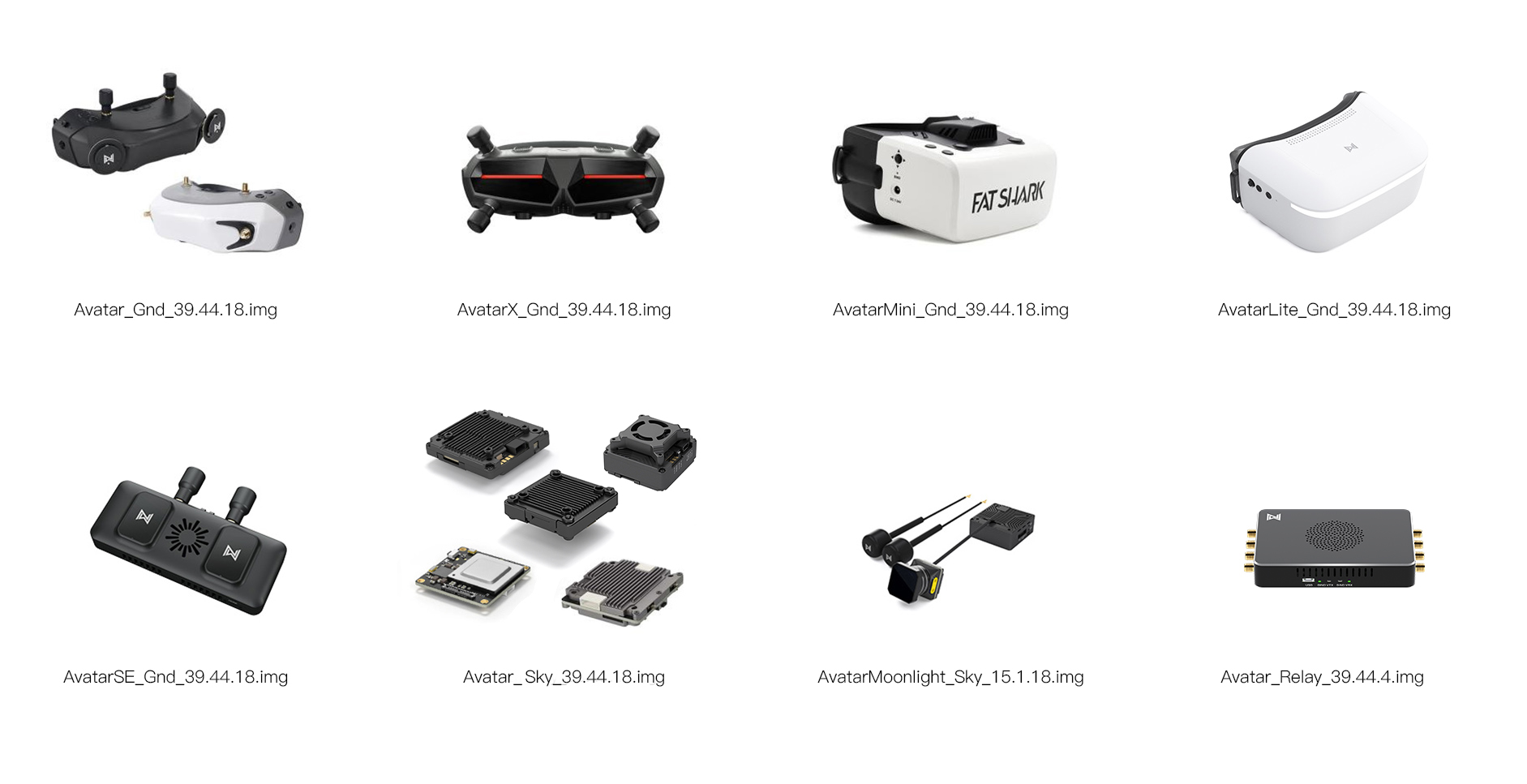
- Each device requires a firmware file with a specific filename. Using an incorrect file may prevent the device from updating properly.
- Refer to the chart below and select the firmware file that corresponds to your device. The filename copied to the storage card must exactly match the filename shown in the chart.
- The
.imgsuffix is the file extension. It may be hidden if file extensions are not enabled in your computer settings. Do not add another.imgsuffix if it is not visible.
¶ Solution 2: Check the Storage Card
- The microSD or SD card may be faulty or incompatible. Use a genuine U3-rated card purchased from an authorized retailer. Cards from reputable brands such as Kingston, Samsung, and SanDisk are recommended.
- U3-rated cards generally provide better performance and reliability in high-temperature environments.
- Format the microSD card as exFAT before use.
¶ Solution 3: Change the Version Number in the Filename
- If the filename and microSD card have been confirmed to be correct but the device still cannot update, change the version number in the firmware filename.
- This may be necessary if the device is already running the same or a later firmware version, as the system does not allow reinstalling the same version or downgrading by default.
- For example, rename:
Avatar_Sky_39.44.18.img
to:
Avatar_Sky_40.44.18.img
Firmware downgrades are not recommended unless you fully understand the risks. Installing an incompatible or older firmware version may permanently brick the device.
¶ Case 3: Incorrect Button Operation
¶ Symptoms
- The device does not enter firmware update mode, and the goggles buzzer continues beeping rapidly.
¶ Solution
- To enter firmware update mode, press and hold the Bind button for eight seconds. Release it only after the LED turns off.
- Releasing the button too early will place the device into Binding Mode instead of firmware update mode.
¶ Important Notes
Do not disconnect the power during the firmware update. Interrupting the power may cause the update to fail or permanently brick the device.
Use a cooling fan to provide airflow over the air unit during the firmware update. Extended operation without sufficient cooling may cause the device to enter thermal protection.
The receiver unit firmware update takes approximately 10 minutes, the air unit update takes approximately 3 minutes, and the repeater update takes approximately 5 minutes. If the update has not completed after the expected time, disconnect the power and try again.
¶ Technical Support
If the issue persists, contact an official support channel for further technical assistance.