¶ Applicable Scenario
- When the flight controller firmware is outdated and needs to be updated, or when the flight controller cannot connect to the computer due to accidentally modified parameters.
¶ Preparations
- One Curve C16/P18 Drone
- One small cooling fan
- One phone or computer
- One Curve Drone Upgrade Module
- One USB Type-A to Type-C data cable
¶ Procedure
¶ Step 1 Connect the Cables
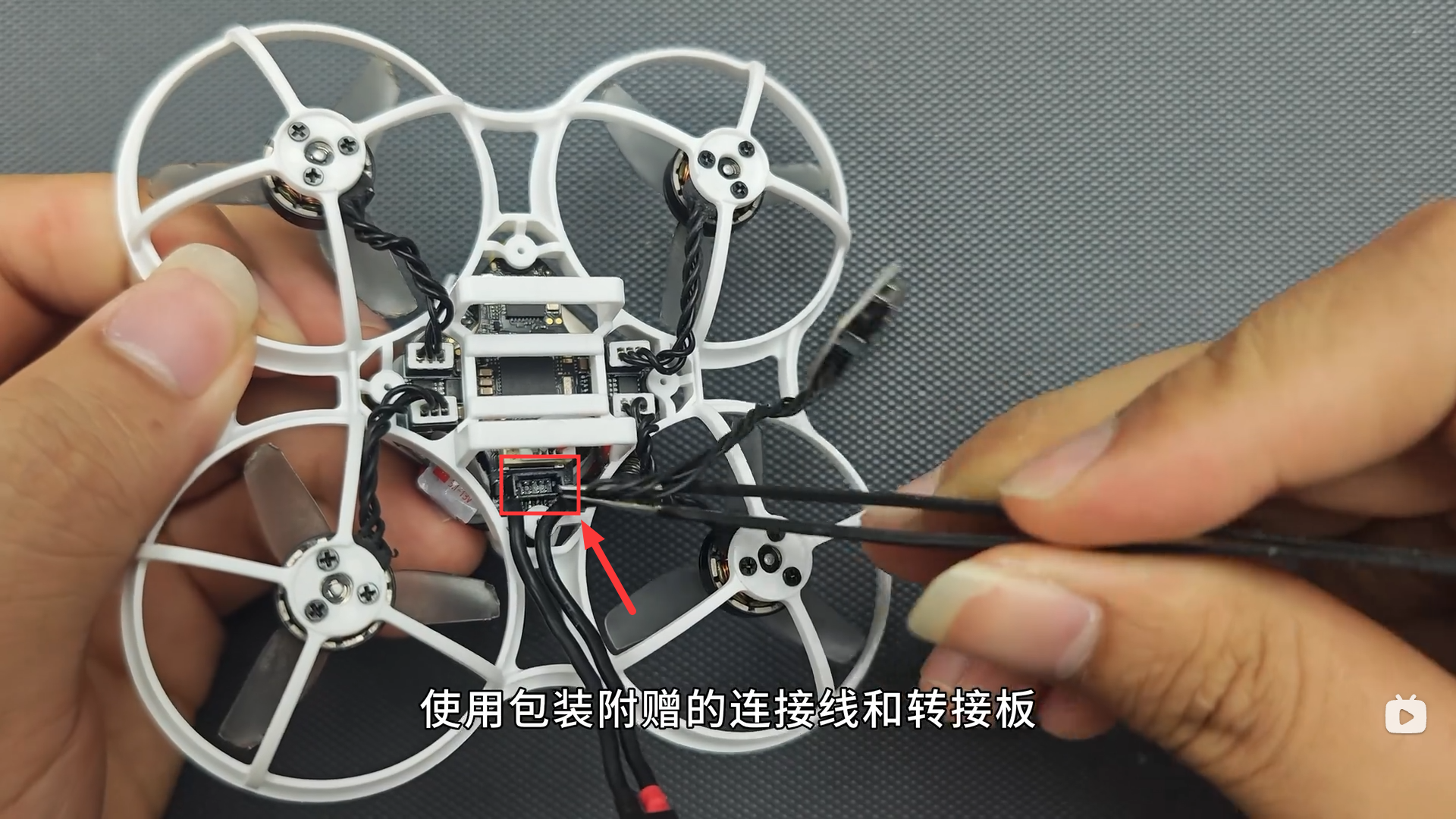
- As shown below, insert the black 4-pin cable into the connector on the bottom of the flight controller. Then use a USB Type-A to Type-C data cable to connect it to a USB 3.0 port on your computer.
¶ Step 2 Install the Drivers
- Windows 10 and Windows 11 can generally recognize the COM port automatically, but the DFU driver is not included.
If this is your first time using FPV products, you must first Install the DFU Driver.
¶ Step 3 Connect to the Configurator
- The latest version of Betaflight provides a web-based configurator. You can access it directly through the official website: https://app.betaflight.com
Alternatively, use the Chinese Mirror Website.
¶ Step 4 Download the Firmware
Download the Curve FPV Drone Flight Controller Firmware.
¶ Step 5 Flash the Firmware
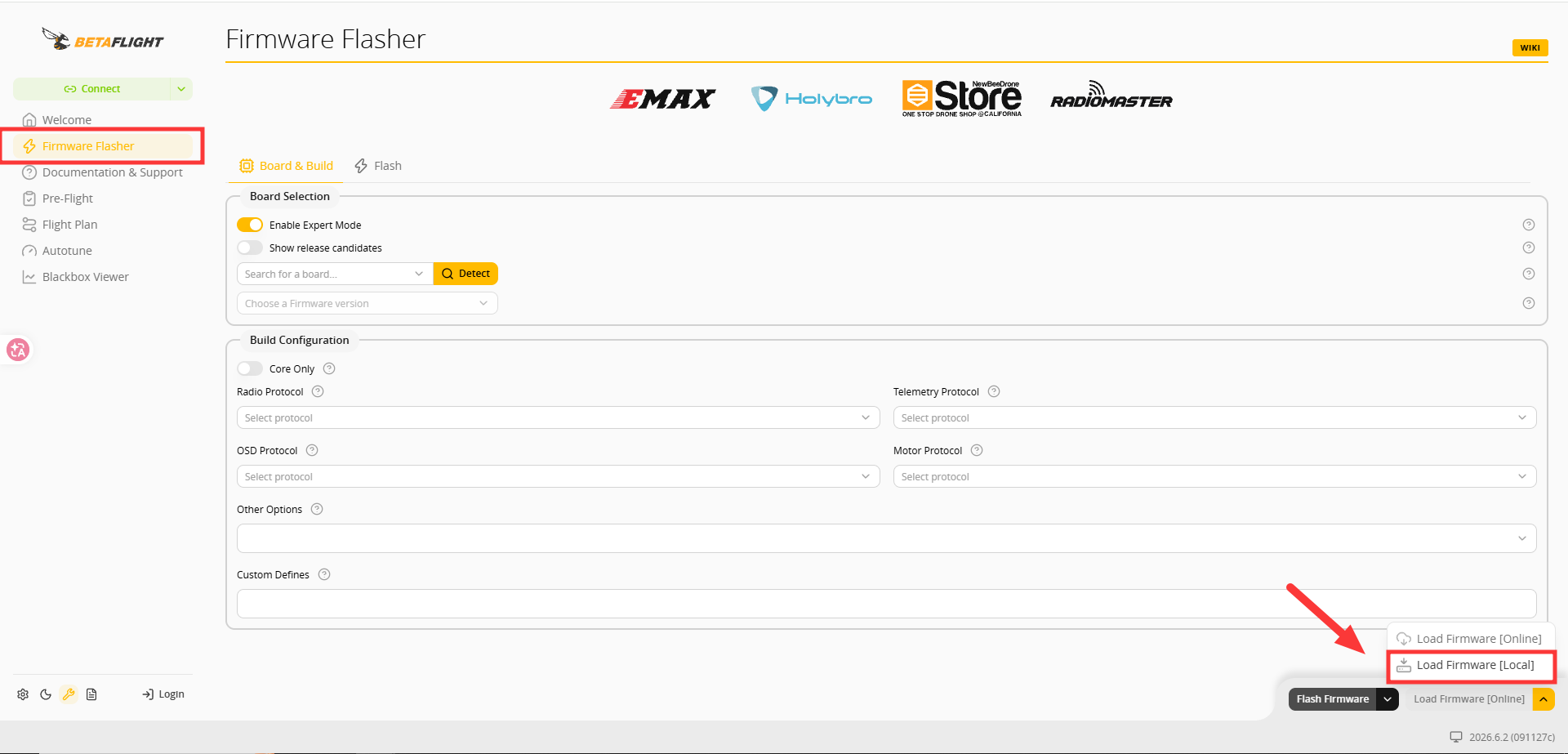
- Select Firmware Flasher in the upper-left corner, then select Load Firmware [Local] in the lower-right corner. Finally, click Flash Firmware to start the process.
¶ Step 6 Import the Configuration
- After the firmware update is complete, connect the flight controller and import the CLI Configuration File.
¶ Video Tutorial
¶ Troubleshooting
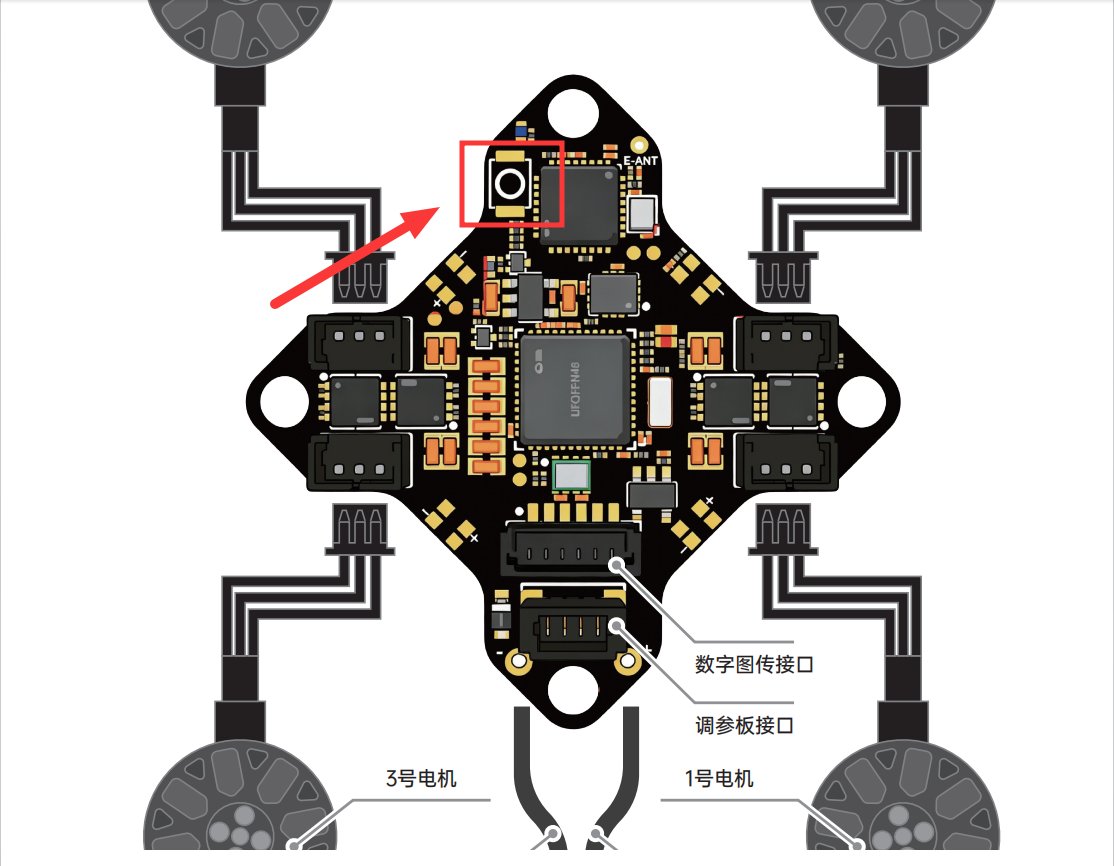
- If you accidentally modify the settings and the flight controller can no longer be recognized through the COM port, disconnect the battery. Before connecting the USB cable, press and hold the Bind button on the flight controller to force it into DFU Mode.
¶ Notes
A USB Type-A to Type-C data cable is strongly recommended. If you need to perform configuration or debugging for an extended period, use a cooling fan to prevent the Drone from overheating.