¶ Control Protocol Selection
GM Series gimbals support direct head-tracking control, S.BUS / CRSF control, PWM control, and MAVLink control. The priority of these four control methods decreases in the order listed above.
If the gimbal receives two control protocols at the same time, it will operate according to the higher-priority protocol.
Gimbal Control Protocols Explained
¶ Direct Head-Tracking Control
¶ Video Tutorial
¶ Avatar GT2
¶ Step-by-Step Guide
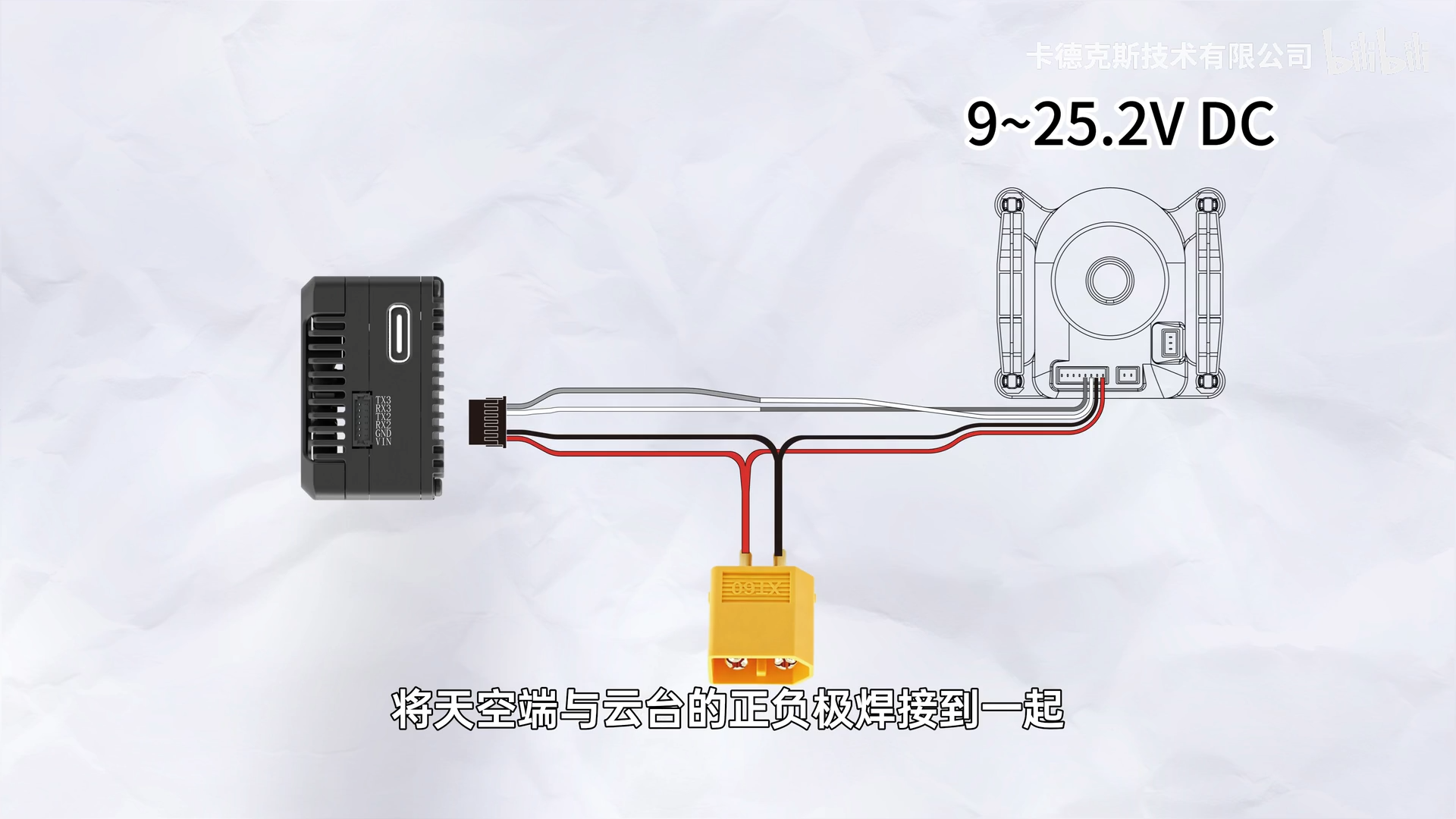
The Avatar GT2 and Avatar V2 air units are used as examples below. Connections for other compatible models are generally similar.
¶ S.BUS / CRSF Bus Control
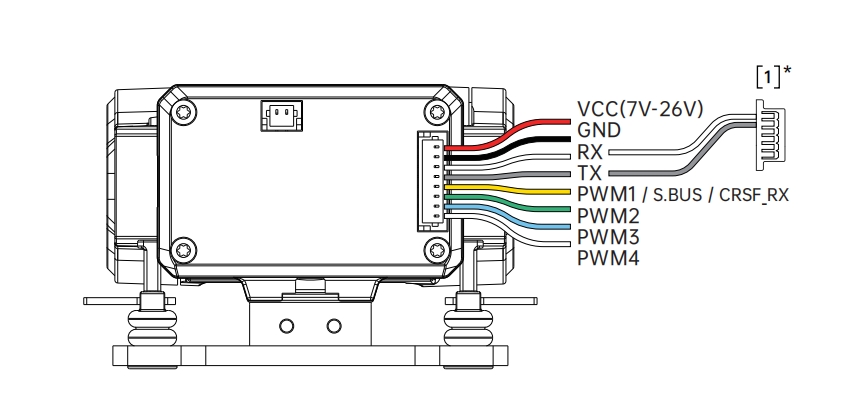
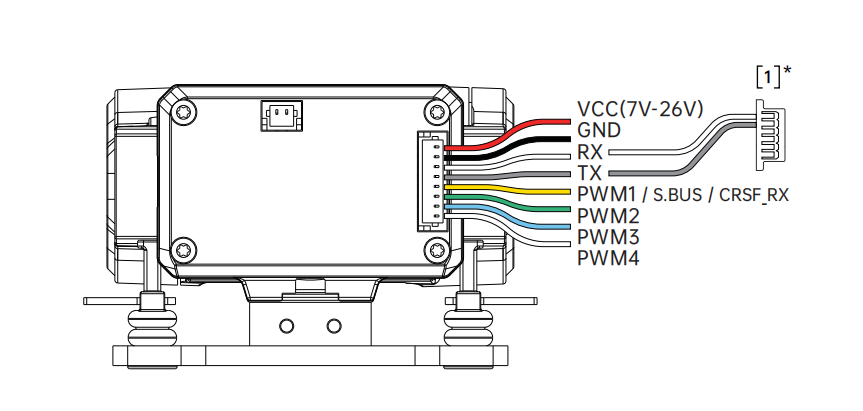
Connect PWM1 on the gimbal power connector to the receiver’s S.BUS or CRSF_Tx output.
This control method requires five channels for:
- Gimbal Mode
- Follow Sensitivity
- Roll
- Pitch
- Yaw
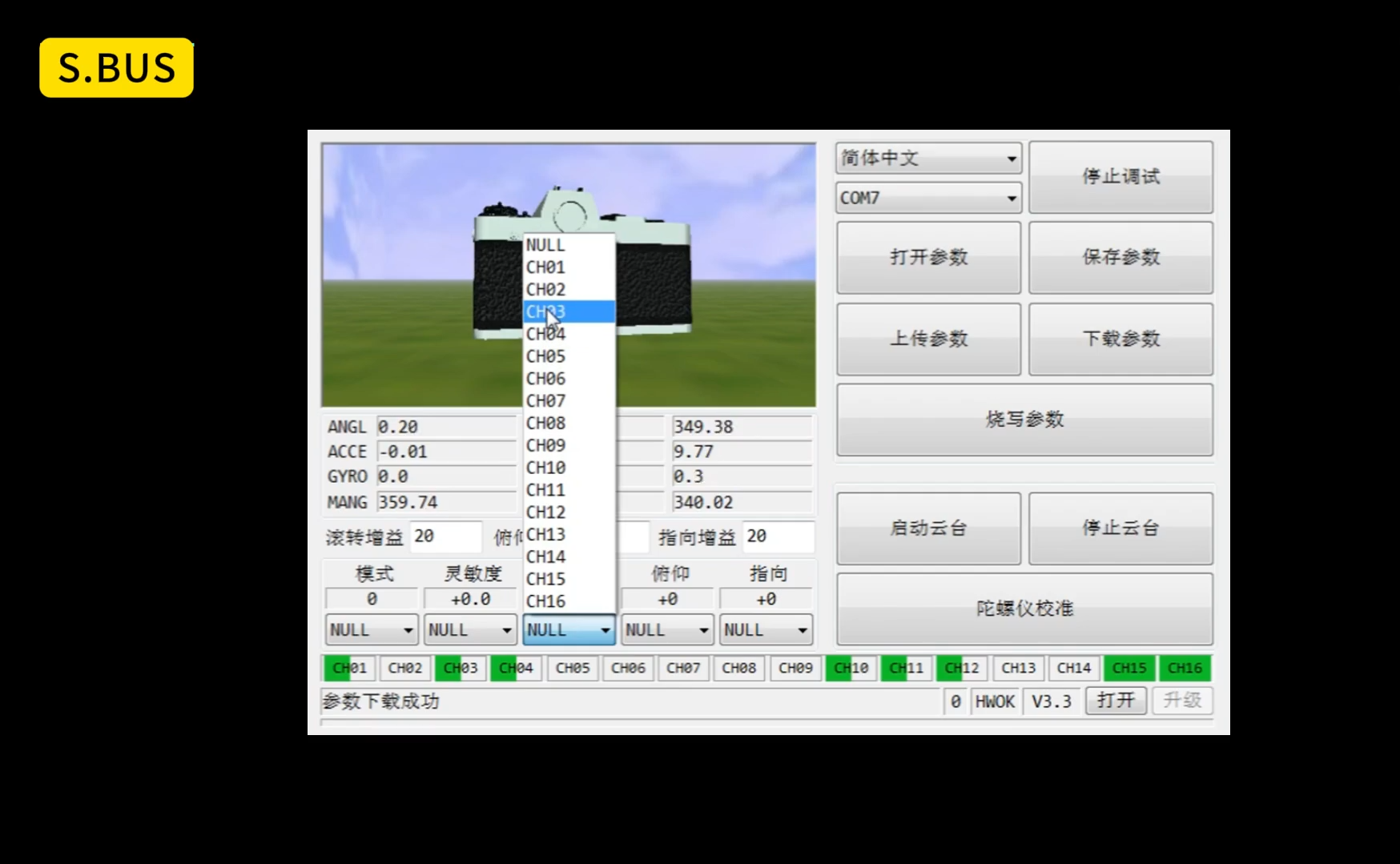
Channel mapping can be configured using the GimbalConfig software.
¶ CRSF
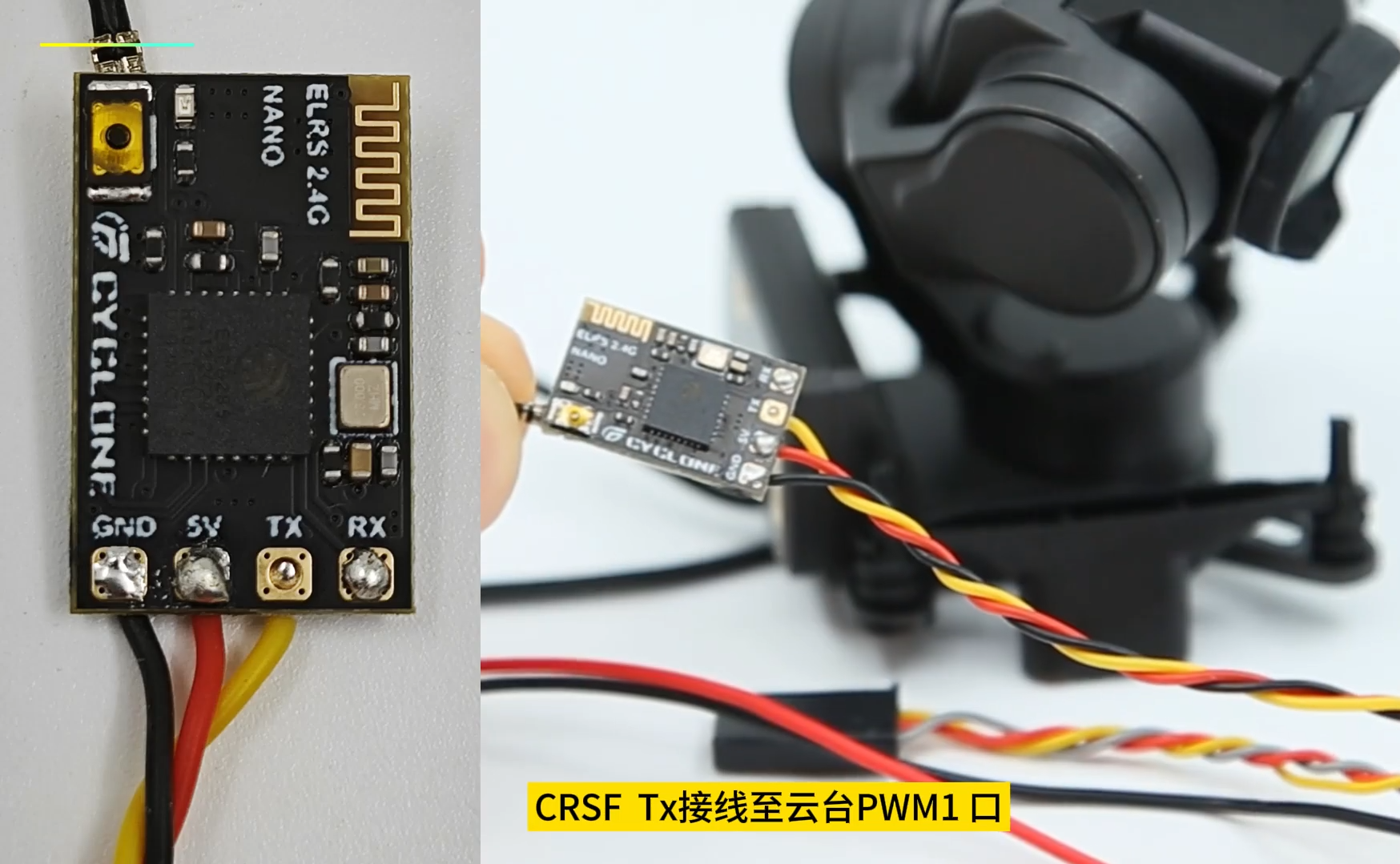
Connect the Tx output of the CRSF receiver to the PWM1 port on the gimbal. Connect GND between the receiver and gimbal as well to ensure stable signal transmission.
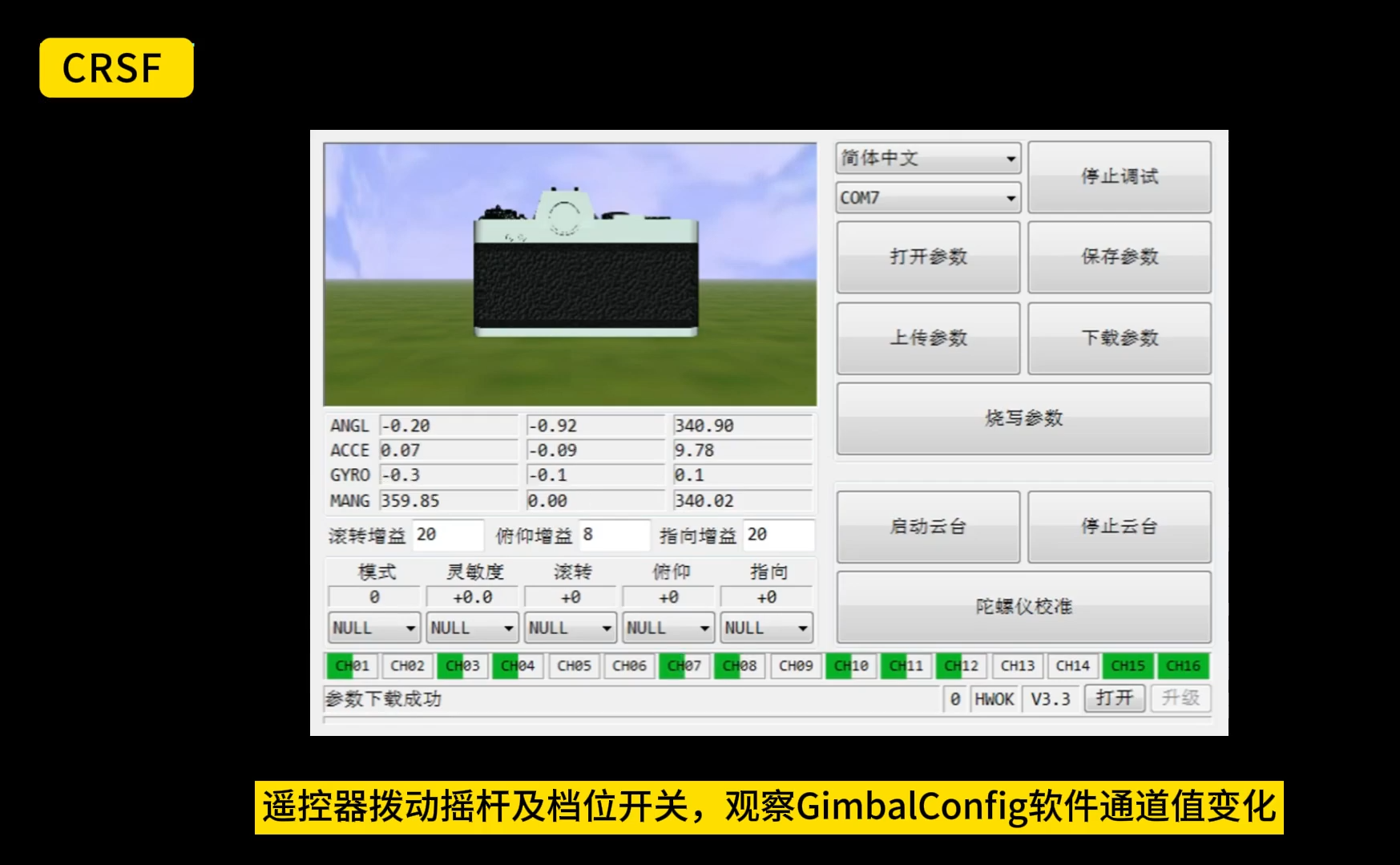
Connect the gimbal to a battery and power it on, then use the firmware update module to connect the gimbal to the computer.
After the connection is established, GimbalConfig will display all incoming signal channels in real time. Select and map the required channels. After configuration is complete, write the parameters to the gimbal.
¶ S.BUS
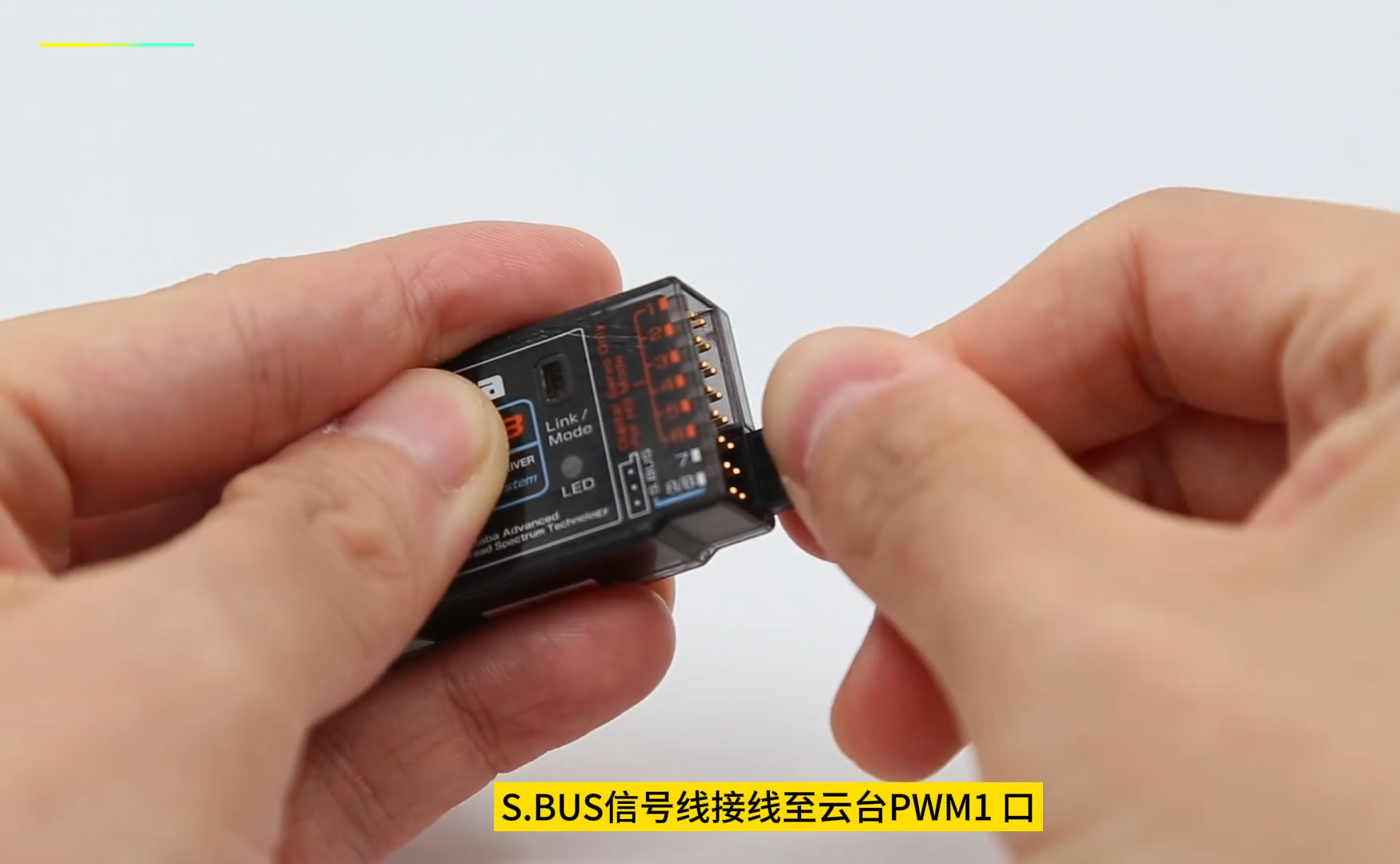
Connect the S.BUS output of the receiver to the PWM1 port on the gimbal. Connect GND between the receiver and gimbal as well to ensure stable signal transmission.
Connect the gimbal to a battery and power it on, then use the firmware update module to connect the gimbal to the computer.
After the connection is established, GimbalConfig will display all incoming signal channels in real time. Select and map the required channels. After configuration is complete, write the parameters to the gimbal.
¶ Multi-Wire PWM Control
PWM1–PWM4 are assigned as follows:
- PWM1: Gimbal Mode
- PWM2: Follow Sensitivity
- PWM3: Pitch Control
- PWM4: Yaw Control
When PWM control is used, Roll control is unavailable. Another control protocol is recommended if Roll control is required.
¶ UART Protocol Control
Connect UART_Rx and UART_Tx on the gimbal power connector to the Tx and Rx pins of an available UART on the flight controller.
This control method requires five channels for:
- Gimbal Mode
- Follow Sensitivity
- Roll
- Pitch
- Yaw
Channel mapping can be configured using the GimbalConfig software.
¶ Important Notes
After changing the parameters, remember to write and save them to the gimbal. Otherwise, the changes will be lost after the gimbal is restarted.
More information coming soon.