¶ When to Use
- When new firmware is released or when the device cannot Bind.
¶ What You Need
- A computer
- A gimbal firmware update module
- A USB-A to USB-C data cable
¶ Procedure
¶ Step 1: Download the Firmware
¶ Step 2: Connect to the Computer
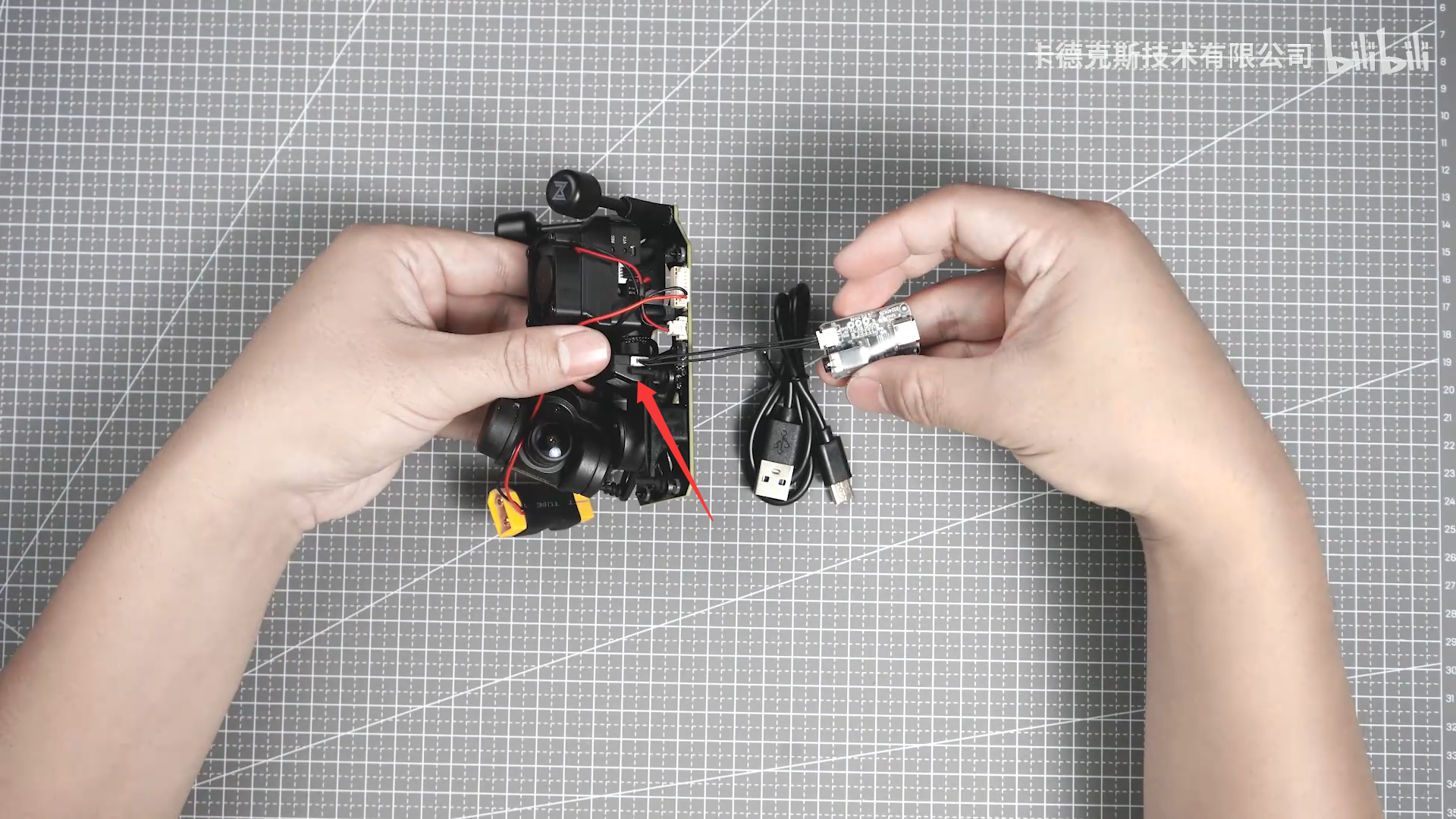
- Use the firmware update module to connect the gimbal to the computer.
¶ Step 3: Install the Driver
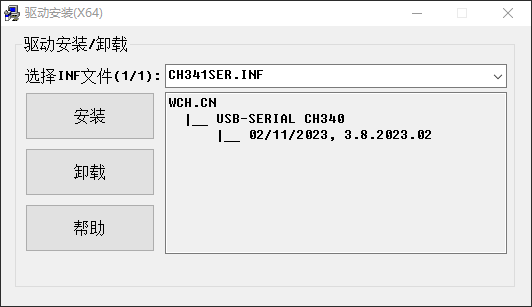
- Install the driver included with the downloaded files to ensure the firmware update module is recognized correctly.
¶ Step 4: Connect Power
- The gimbal must be powered during the firmware update. USB power alone is not sufficient for the update.
¶ Step 5: Select the Gimbal
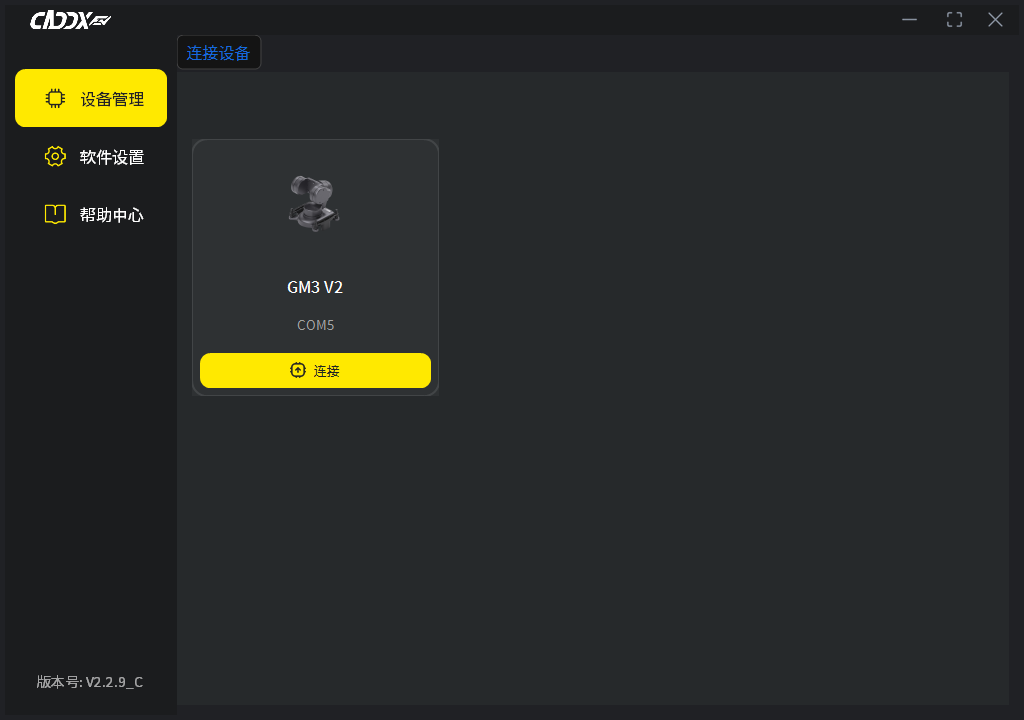
- Once everything is connected correctly, CADDX PC Tool will detect the gimbal. Click to connect to the device.
¶ Step 6: Update the Firmware
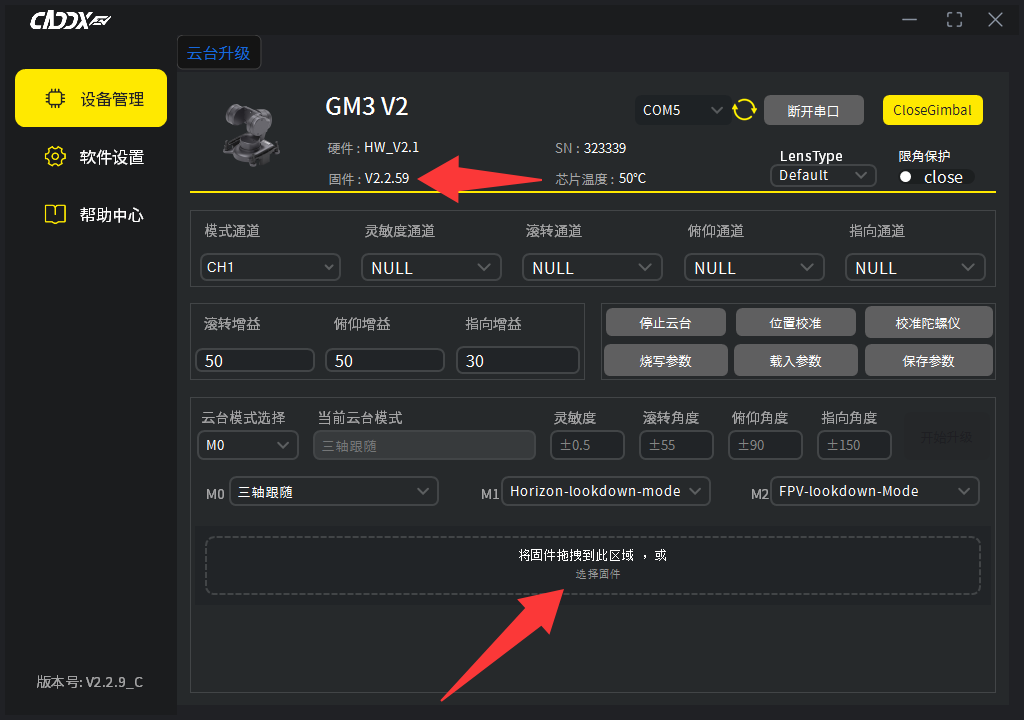
- The current firmware version is displayed in the upper-left corner. Select the new firmware file and start the update.
- Important:
GM1 V2andGM3 V2use different firmware files. Do not select the wrong file. An incorrect firmware file may cause the update to fail or, in severe cases, brick the device.
¶ Important Notes
CADDX GM V2 Series gimbals use CADDX PC Tool, not GimbalConfig!!!
GM1 V2 and GM3 V2 use different firmware files. Make sure you select the correct file before updating!!!
If an air unit is connected during the firmware update, make sure the air unit has adequate cooling. Extended operation may trigger thermal protection.
If the computer does not detect the COM port of the firmware update module, check whether the driver has been installed correctly.